Disabling HUD for Specific Tables
When playing on Suprema Poker, I notice that the HUD remains active after I close tables. This typically happens when I open a table to join the waiting list and then close it. H2N continues to display the HUD for that table. Is there a way to disable the HUD for specific tables in this scenario?
1 Reply
Hello,
Could you please try the following steps:
1. Add the entire Hand2Note folder C:\Program Files\Hand2Note\ to your antivirus exclusions: https://support.microsoft.com/en-us/wind...
2. Update Hand2Note to the latest version 3.3.1.67: https://hand2note3.hand2note.com/Help/pa...
3. Make sure you have disabled the "Disable rooms compatibility auto updates" option in Configuration-> HUD then restart Hand2Note (if the option is enabled, switch it off, then Save and restart Hand2Note):
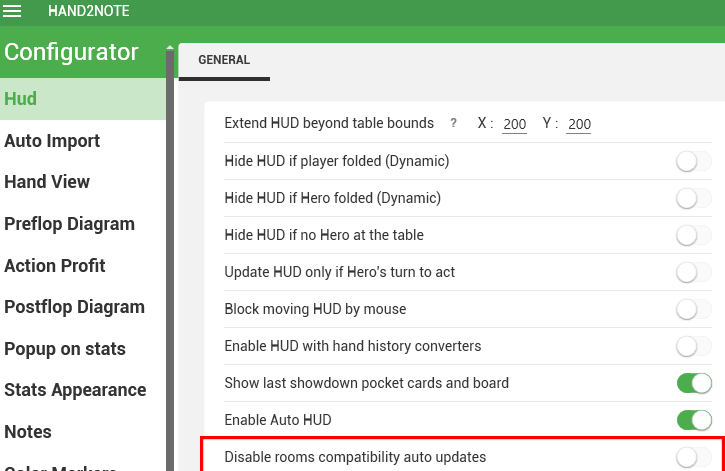
4. Delete log files and disable logging. To do this, go to Settings → Other Options → Logging, uncheck all the boxes, and click Save. You can delete logs from this folder: C:\Program Files\Hand2Note\logs.
----
If the problem is with Hand2Note 4, then please follow these steps:
1. Add the entire Hand2Note folder C:\Program Files\Hand2Note4\ to your antivirus exclusions.
2. Close all poker rooms.
3. Restart Hand2Note.
4. Go to the Updates section and install the latest updates in the following tabs:
• Hand2Note.
• Rooms Integration.
• SupremaDesktop.
If the updates are not installed for some reason, it’s likely that the module is still running in the background. You can try to locate all Hand2Note-related processes in Task Manager and force close them, or simply reboot your PC. Additionally, please note that antiviruses can sometimes block the installation of updates, so ensure that your antivirus is not interfering with the process.


