hud not working on winamax

Hello,
My HUD does not show on Winamax. The site recognize that the tracker is hand2note but i do not see any HUD on the tables.
Do you know if i should do something ?
I did a search and it seems that it should work easily. I didnt found any help anywhere.
Best regards,
Pascal Batros
1 Reply
Hello!
HAND2NOTE 3
Please check whether all the required settings have been added correctly.
Step 1. Initial setup:
1. Configure Auto-Import for the new Winamax client.
2. Check the language settings in Winamax; it needs to be set to English.
3. Make sure you are running the latest Hand2Note version: 3.3.1.69.
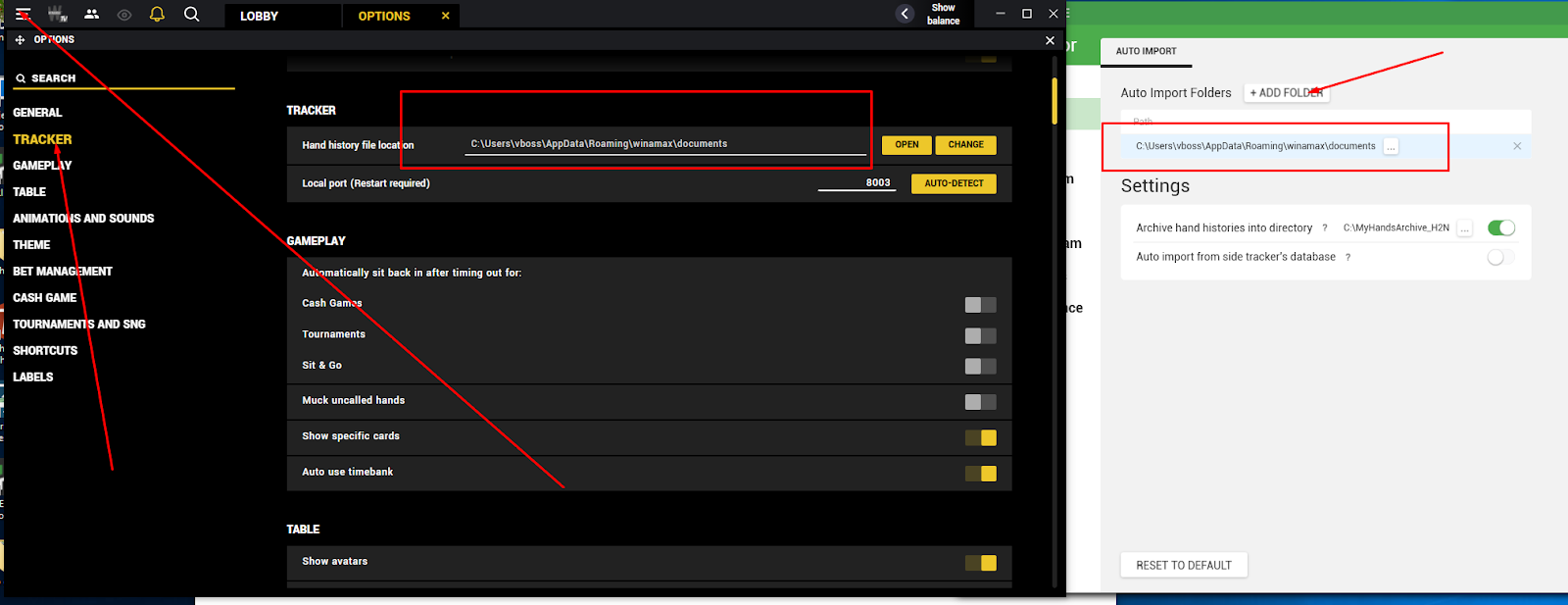
If the HUD is still not working, please try the following steps:
1. Install all the latest Windows updates.
2. Disable or uninstall your antivirus software if you have one.
3. Add both the Winamax folder and the Hand2Note folder to Windows Defender exclusions:
https://support.microsoft.com/en-us/wind...
4. Restart your PC.
5. Always launch both Hand2Note and Winamax as administrator.
6. Sit at a table and play a few hands.
Step 2. Winamax Playground:
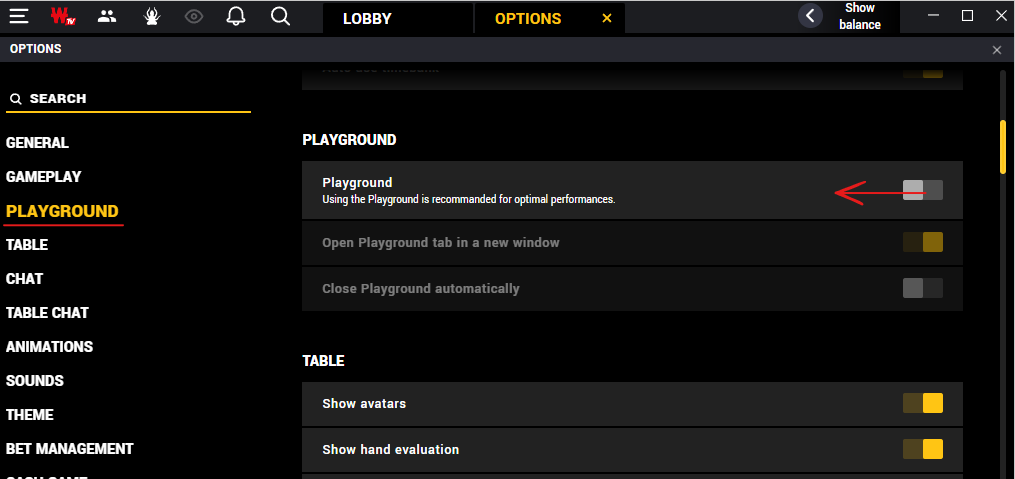
It is important to disable Playground mode; otherwise, the HUD will not work correctly on all tables.
1. Disable it in the Winamax settings.
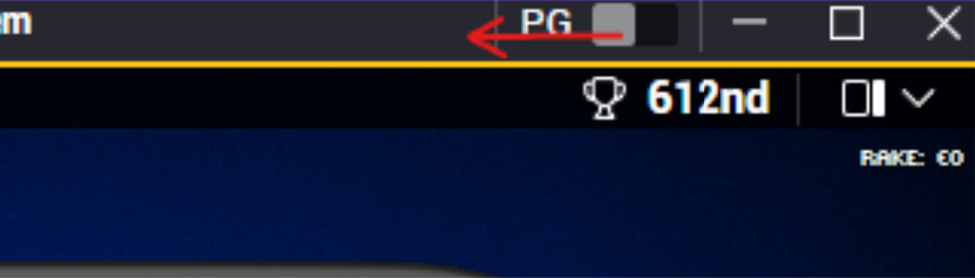
2. Or disable it directly on the table frame by switching off the Playground slider.
HAND2NOTE 4.1
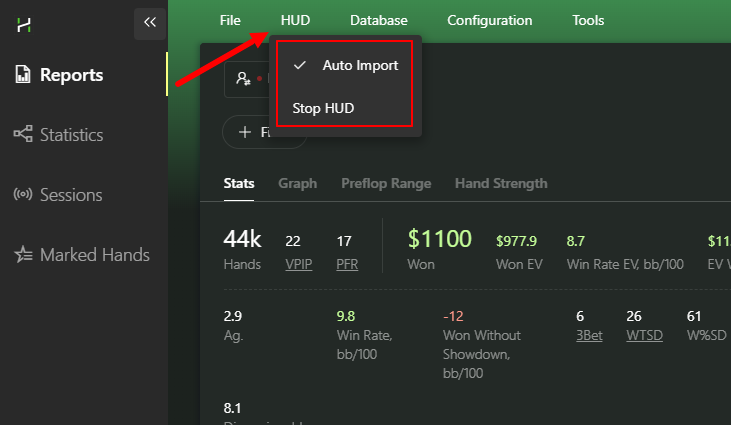
Please check your Auto-Import settings for Winamax:
1. Make sure the room is running in English.
2. Open Options -> Tracker.
3. Copy the "Hand history file location" path and add it to Hand2Note here: Configuration -> Auto Import -> Add auto import folder.
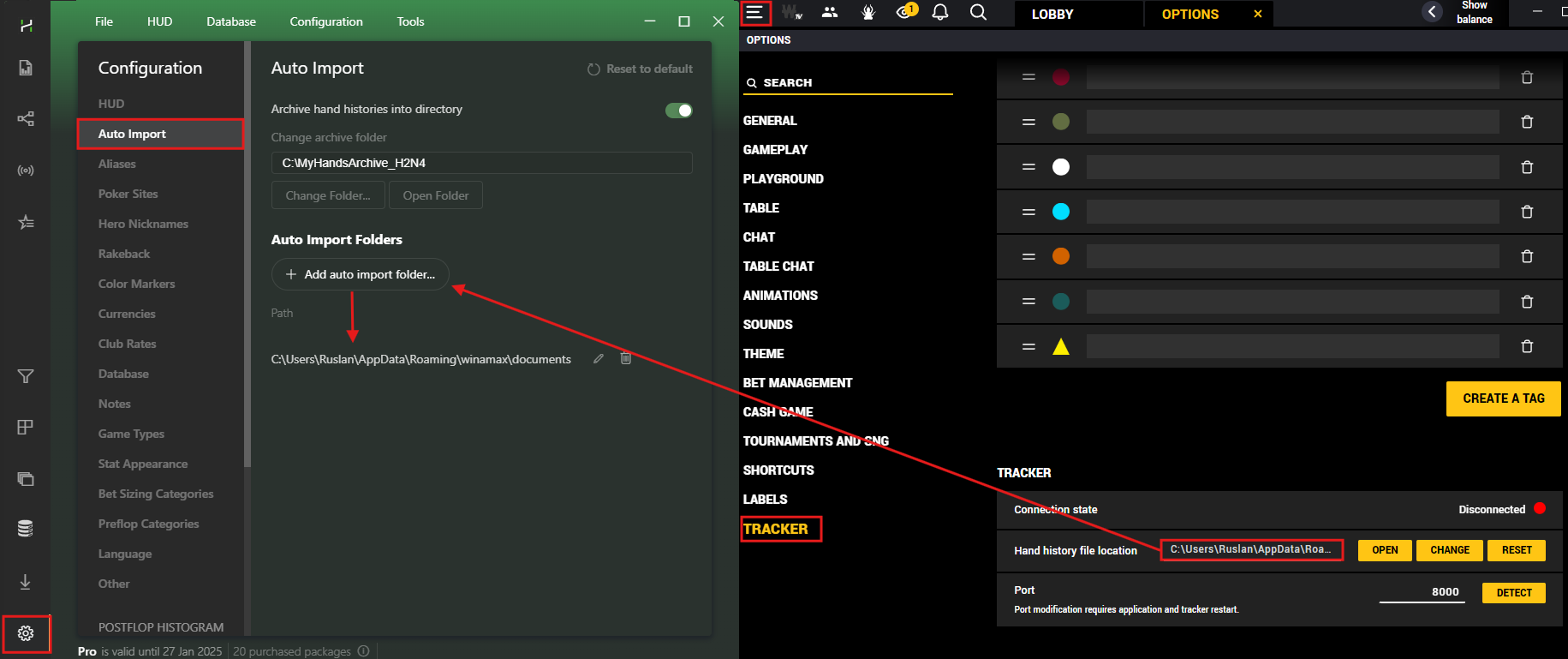
Additionally, please check whether these options are enabled.